
- How To Install the Astra Theme
- System Requirement for Astra Theme
- What Is a Child Theme and How To Install It for Astra?
- Manually Install Astra via FTP
- How to Update Astra Theme Manually?
- Automatic Beta Updates for Astra
- Astra 4.2.0-beta.1 : Migrations & Backwards Compatibility
- Know More about Astra Beta Versions? How to Download and Use?
- How to Create a Multisite Network and Use Astra Child Theme On It
- Getting Started with Astra Pro Addon Plugin
- What is Astra Pro Add on?
- How to Install Astra Pro Plugin?
- How to Get License Key of Astra Pro?
- How to Activate Astra Pro Addon License?
- Getting error – The package could not be installed. The theme is missing the style.css stylesheet?
- Why Can’t I Access Astra Pro Features After Purchasing the Pro Version?
- Do Not See License Activation Form for Astra Pro Addon Plugin?
- How to Fix “Sorry, You Are Not Allowed To Access This Page” Error In Astra Pro
- How to Download Your Purchase Invoice
- How to Manage License on Store?
- How Do License Upgrades Work?
- How To Update Your Payment Method?
- How to Process Refund Requests?
- How to Apply For Brainstorm Force Affiliate Program? (Become Astra Affiliate)
- Frequently Asked Questions – VIP Priority Support
- How do I check my Support Ticket History?
- How To Create a Header With Astra Header Builder
- How To Create Mobile Header With Astra Header Builder
- Why Is My Logo Blurry?
- Astra – Customize the Submenu
- FAQs – Astra Header/Footer Builder
- Elements in Header/Footer Builder With Astra Theme and Astra Pro
- Add Multiple Elements in Header Footer Builder
- FAQs – Astra Header/Footer Builder – Existing Customers
- Clone Elements in Header Footer Builder
- How To Manage Sidebars in Free Astra Theme
- Understanding Sidebar Style in Astra Theme: Customizing Your Sidebar’s Look
- Sticky Sidebar
- Scroll To Top
- How to Display a Breadcrumb Anywhere within a Page or Post with Shortcode?
- Find the Way With Breadcrumbs
- How to Change the “HOME” String in Breadcrumbs
- How to Switch From Existing Breadcrumb to New Trail?
- How To Add Breadcrumbs in WordPress Website with Astra
- Blog Overview
- Blog / Archive
- Single Post
- Display Related Posts on Single Blog Post
- How to remove an Author’s name from a Single Blog Post?
- How to Remove Astra Post Excerpt from the Post Archive
- Show “Last Updated” or “Published Date” on Blog
- The Recommended Size for Featured Image
- How to add a Blog page banner/title with Astra
- Astra WooCommerce Mini Cart Shortcode
- WooCommerce Module Overview
- How to Design a Product Catalog Page or Shop Page Using WooCommerce Module in Astra?
- Single Product WooCommerce
- Checkout Page WooCommerce
- Colors & Background Options For WooCommerce
- Typography Options for WooCommerce
- Off-Canvas Sidebar for WooCommerce Shop Page
- Quick View for WooCommerce Products
- How to Disable EDD Inbuilt Styling?
- How to Add Download Archive Pages to the Menu When Using Astra with EDD?
- How to Add EDD Cart in Header? (Old Astra Header)
- How to Display a Mini Cart Anywhere Using Shortcode? (Astra and EDD)
- EDD – Easy Digital Downloads Module Overview
- General – EDD Module Options
- Product Archive – EDD Module Options
- Single Product – EDD Module Options
- Checkout Page – EDD Module Options
- Footer Custom Text Helper Strings
- Does Astra support Beaver Themer Plugin?
- How To Disable Right Click in WordPress
- Increasing the PHP Memory Limit of Your Website
- How To Disable Header or Footer for a Landing Page or Post
- Where Does Astra Primary Color Setting Take Effect?
- How To Adjust the Width of Your Sidebar
- How to Update the Plugin Manually from WordPress Backend?
- Recommended Settings for Elementor and the Astra Theme
- How To Translate Site Builder With WPML?
- How To Make Astra Multilingual With WPML
- How to Translate Astra Strings with WPML?
- Translating the Advanced Custom Fields with WPML
- How to Turn Astra Website Multilingual with Polylang?
- How to Translate Categories, Tags, and Astra Strings with Polylang
- How to Turn Astra Website Multilingual with TranslatePress?
- How to Translate Astra Theme / Plugins in Your Own Language using GlotPress?
- Translate Site Builder Layouts Using Polylang
- Fix for – The PCLZIP_ERR_BAD_FORMAT (-10) Error
- Host Google Fonts Locally – Performance Is the Key
- Fix for – Parse error: syntax error, unexpected T_FUNCTION
- How to fix Fatal Error / White Screen of Death?
- Fix for- cURL error 51: SSL: no alternative certificate subject name matches target host name ‘websitedemos.net’
- ‘The preview could not be loaded’ Pop Up with Astra and Elementor
- Troubleshooting Steps ( with Health Check & Troubleshooting plugin )
- How to Deal with Update Issues in Astra Theme and Astra Pro Addon?
- Blog Featured Image Size Not Working / Error in Image Processing Library
- How to Change the Default Astra Strings
- Using Hooks in Astra
- How to Change the “Scroll To Top” Icon in Astra?
- Astra Pro WP CLI Commands
- How to Add Custom PHP Code?
- How to Disable the Loading of Astra’s Default Font File? (Astra.woff)
- Disable Featured Image on Posts, Pages, or Other Post Types
- Change Sidebar Widget Title Heading Tag
- Disable All Meta Settings of Page or Post by Default
- How to Change Website Logo Destination URL
- Remove Primary Navigation Menu with Hook
- Change the Astra Header Breakpoint Width
- How to Disable Primary Header?
- Add Title attribute to Header Background Image as a Substitute for Alt Text
- How to Change HTML tag for Site Title and Tagline?
- How to Change the Heading Tag for the Page/Post Titles?
- How to Change the “Search Results For” String
- Change Placeholder for Search Box (Old Astra Header)
- How to Change Previous and Next Link Text from a Single Blog Post?
- How to Remove Featured Image Link on Archive Page?
- Filter to Remove Link From Featured Images on Blog Page
- Blog Featured Image Size Not Working / Error in Image Processing Library
- Filters to Support CPTs for Blog Meta and Single Blog Meta
- How To Change Navigation Links Text for a Blog Archive?
- How to Display the Post Category as a Related Posts Title?
- Change “Leave A Comment” title tag
- Customizing Social Profile Links for Individual Authors in Single Posts
- Change Woocommerce Out of Stock Text
- How to Disable Product Quantity (Plus-Minus) Buttons?
- How to Modify/Change the Quick View text?
- Filter to Add Global Button Settings Support for WooCommerce Buttons
- Change the “Shopping Cart” Text for WooCommerce & EDD Mobile Header Cart
- Fix Woocommerce Cart Becoming Transparent With Header Builder
- Restrict Search Results to WooCommerce Products Only
- How To Hide Quantity Number When the Woocommerce Cart Is Empty?
- Remove Astra Customization for WooCommerce
- How to Add Custom CSS Code Without Editing Theme Files?
- How to Highlight a Certain Menu Item?
- How to Design Bullets & Lists?
- Dim Content on Menu Hover
- How to add custom CSS and JavaScript to Astra theme
- How To add Custom CSS for Specific Pages
- Mobile Breakpoint Causes Issues with Transparent Header Menu Color
- How to Create Custom CSS using Inspect Element Tool?
- Display Coupon Field on Checkout & Cart Pages
- Fix Swap Sections Not Working on Mobile (Old Astra Header)
- How to Remove Google Fonts Suggestions in Astra Theme?
- Remove default stretched block layout spacing
- How to Change the Logo on Specific Pages?
- How to remove horizontal & vertical gallery layouts from a single product page?
- Introducing New Filter to Enable/Disable Rank-Math Theme Support
- Enable/Disable YouTube videos from Astra admin dashboard
- How to Fix the Line Height Unit being converted to “EM”?
- How to Change WordPress Post labels to Projects
How to Download Your Purchase Invoice
When you purchase any product or bundle from the Brainstorm Force store, an invoice is automatically generated for your order.
You can download your invoice at any time from your Brainstorm Force account dashboard. This guide will show you where to find and download it.
Before You Start
Make sure you have access to the email used during the purchase. Your invoice will be available in the Brainstorm Force customer account linked to that email.
If you cannot access that email anymore, you may need to contact support to retrieve your purchase.
Access Your Brainstorm Force Account
First, log in to your Brainstorm Force account.
- Open the Brainstorm Force Account page.
- Enter the email address used during your purchase.
- Enter your password.
- Click the Login button.
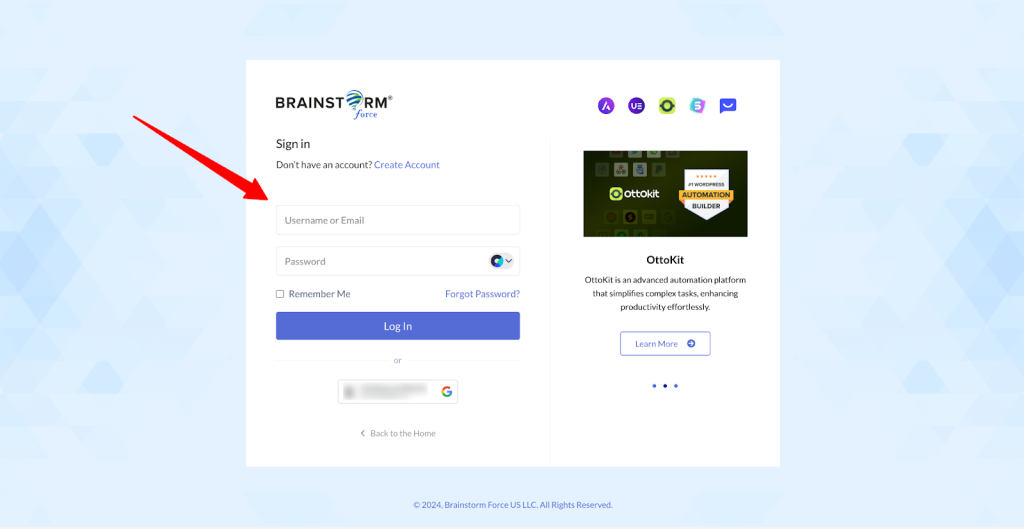
If you forgot your password, click the Forget Password? link and reset it using your email.
Open Your Orders Section
Step 1: Once logged in, you will be redirected to the Getting Started page: https://store.brainstormforce.com/getting-started/
Step 2: In the Quick Links section, click the “Click Here” button under the Downloads box.
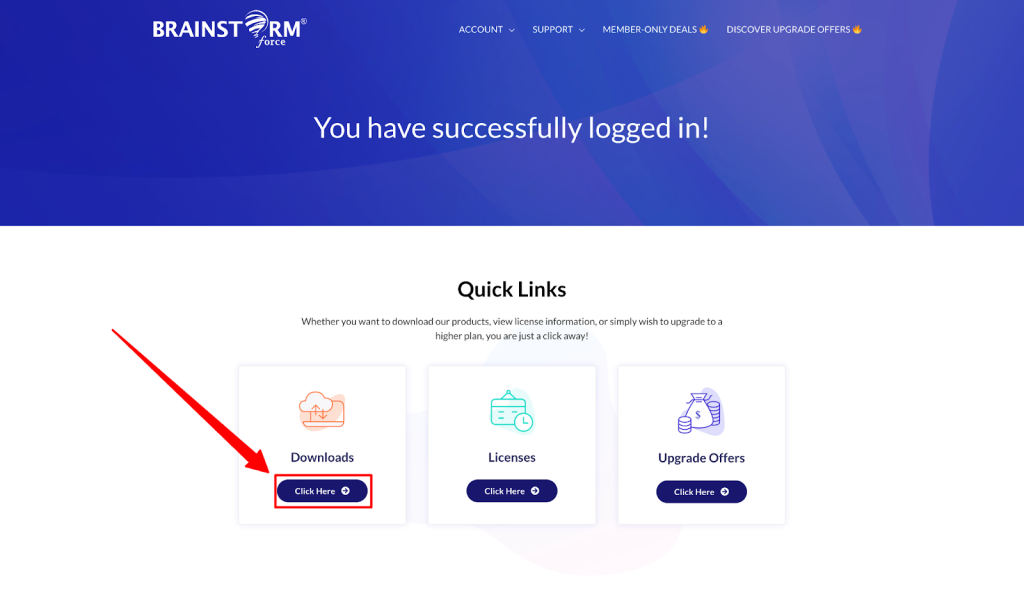
Here you will see a list of all the products you have purchased from Brainstorm Force.
Download Your Invoice
Now you can download the invoice for any purchase.
Step 1: Open your account page: https://store.brainstormforce.com/account/
Step 2: Find the purchase for which you want to download the invoice.
Step 3: Click the three dots next to that purchase.
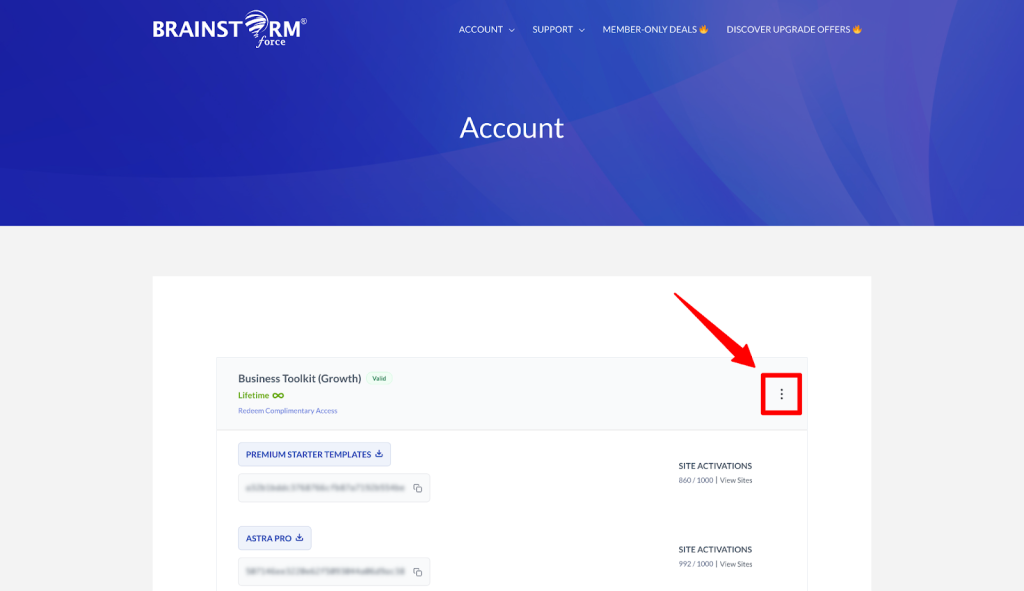
Step 4: Click “Purchase History” from the options that appear. This will open your purchase history, where you will see the View Invoice buttons.
Step 5: Click “View Invoice”.
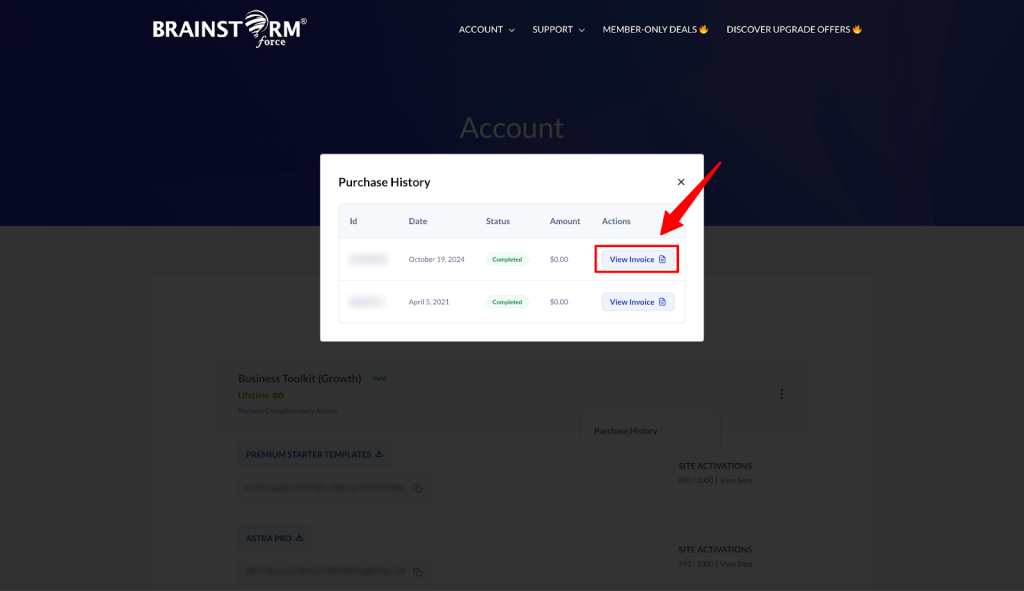
Step 6: The invoice will open in a new tab.
Step 7: Inside the Invoice To section, click the “Update” button to add or edit your billing details.
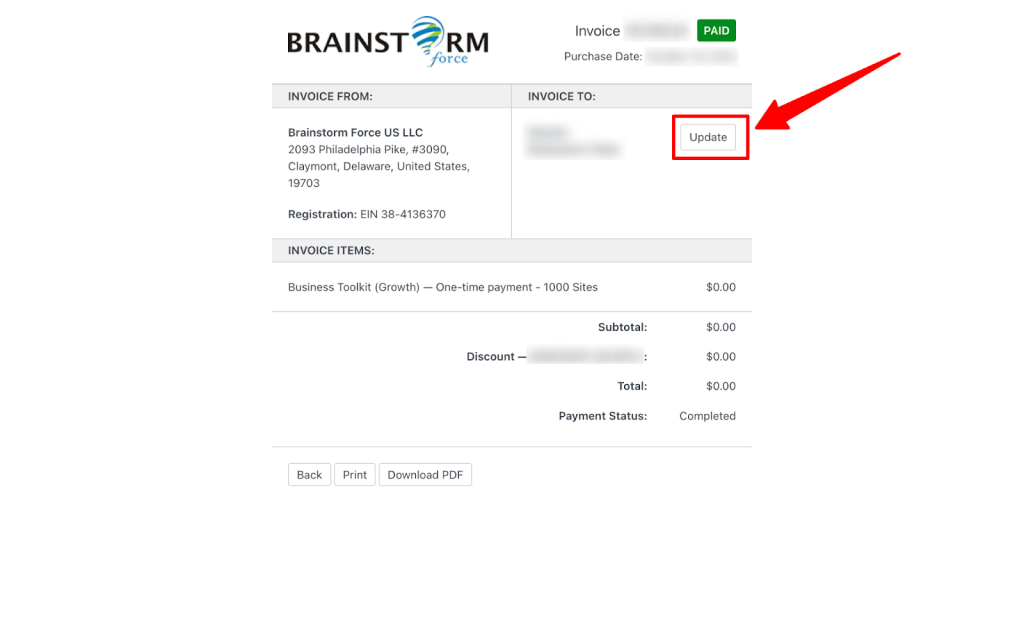
Step 8: You can add or update the following details:
- Custom Notes
- Company
- Billing Name
- Billing Address
- Line 2
- City
- Zip / Postal Code
- Country
- County / State
- Tax / VAT Number
Step 9: Once you have entered the required details, click “Save Billing Details and Generate Invoice”.
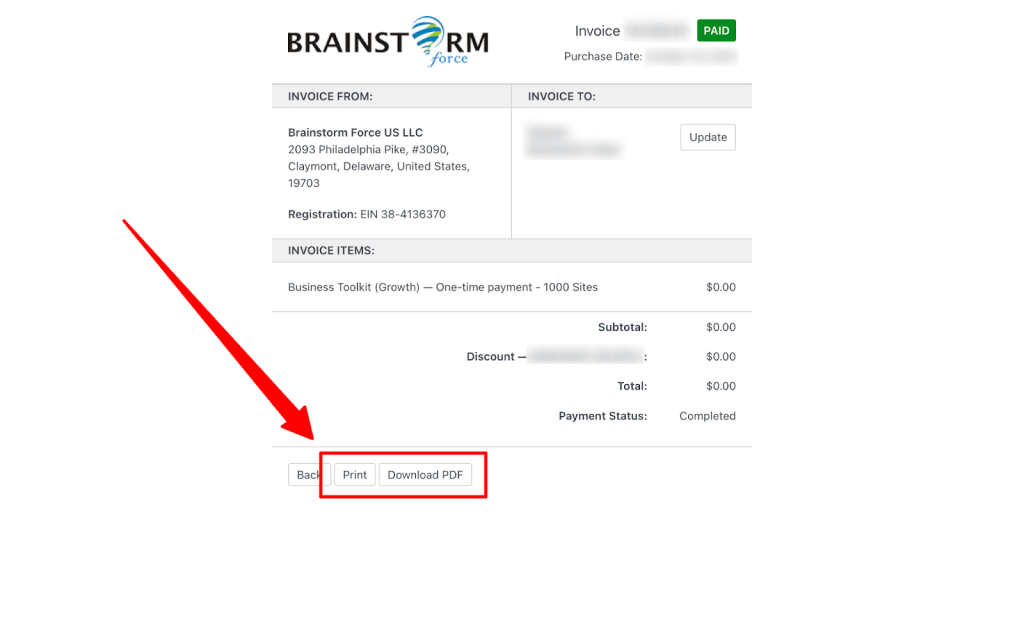
Step 10: The invoice will refresh in a new tab with the updated information. From there, you can click “Print” to print the invoice or “Download PDF” to save a copy of the invoice to your device.
When You Cannot Find Your Invoice
If you cannot locate your invoice, check the following:
- Make sure you logged in using the same email used for the purchase
- Check if the order appears in the Account page
- Search your email for the purchase confirmation email
The confirmation email sent after your purchase also contains your order details.
Getting Help From Support
If you still cannot access your invoice, our support team can help.
Please contact us and include:
- The email used during purchase
- Product name
- Approximate purchase date
- Transaction ID (if available)
Support page: https://store.brainstormforce.com/support
This will help the team locate your order faster.
Now you know how to access and download invoices for any Brainstorm Force product purchase. If you need help with your products, these guides may also help:
- https://wpastra.com/docs/getting-started-business-toolkit/
- https://wpastra.com/docs/getting-started-essential-toolkit/
If you run into any issues, feel free to contact the Brainstorm Force support team. We will be happy to assist you.
We don't respond to the article feedback, we use it to improve our support content.